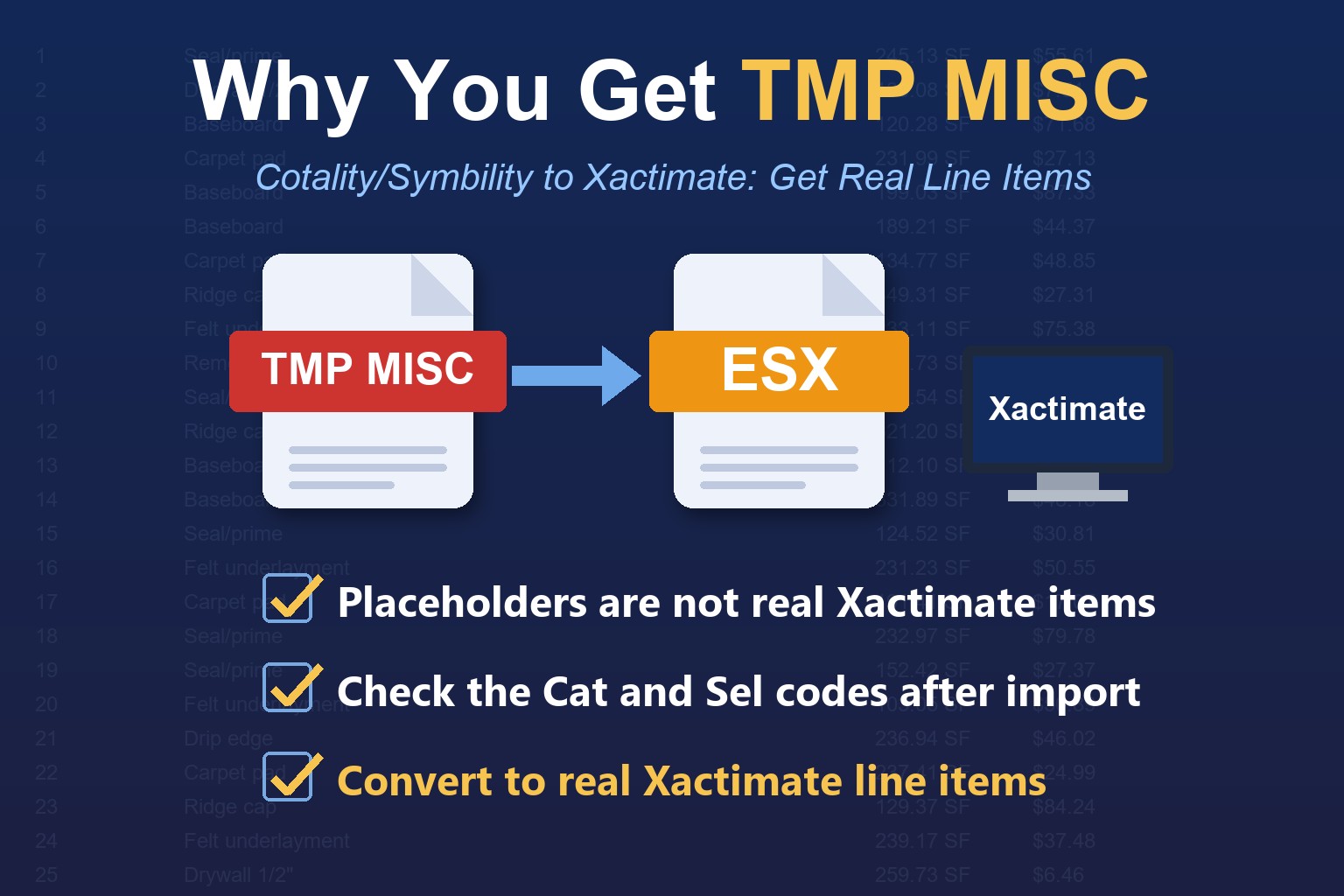
Why Some Converters Return TMP MISC for Cotality/Symbility Estimates (EstimateHub converts correctly)



Why do some converters return TMP MISC for Cotality/Symbility estimates?
Some PDF to ESX converters read a Cotality/Symbility PDF but do not match each line to a Xactimate line item. Instead they fall back to generic placeholders, usually TMP MISC or GEN BIDITEM. Every line imports, but as a placeholder you must replace by hand. EstimateHub works differently. It matches Cotality/Symbility lines to real Xactimate line items, so only very few lines in an EstimateHub file are TMP MISC.
What does TMP MISC mean in Xactimate?
TMP MISC is a generic placeholder line item. GEN BIDITEM is another one you may see. In both cases the estimate opens, but the line carries a description and a price, not a real Xactimate category and selector code.
Why other converters end up with TMP MISC
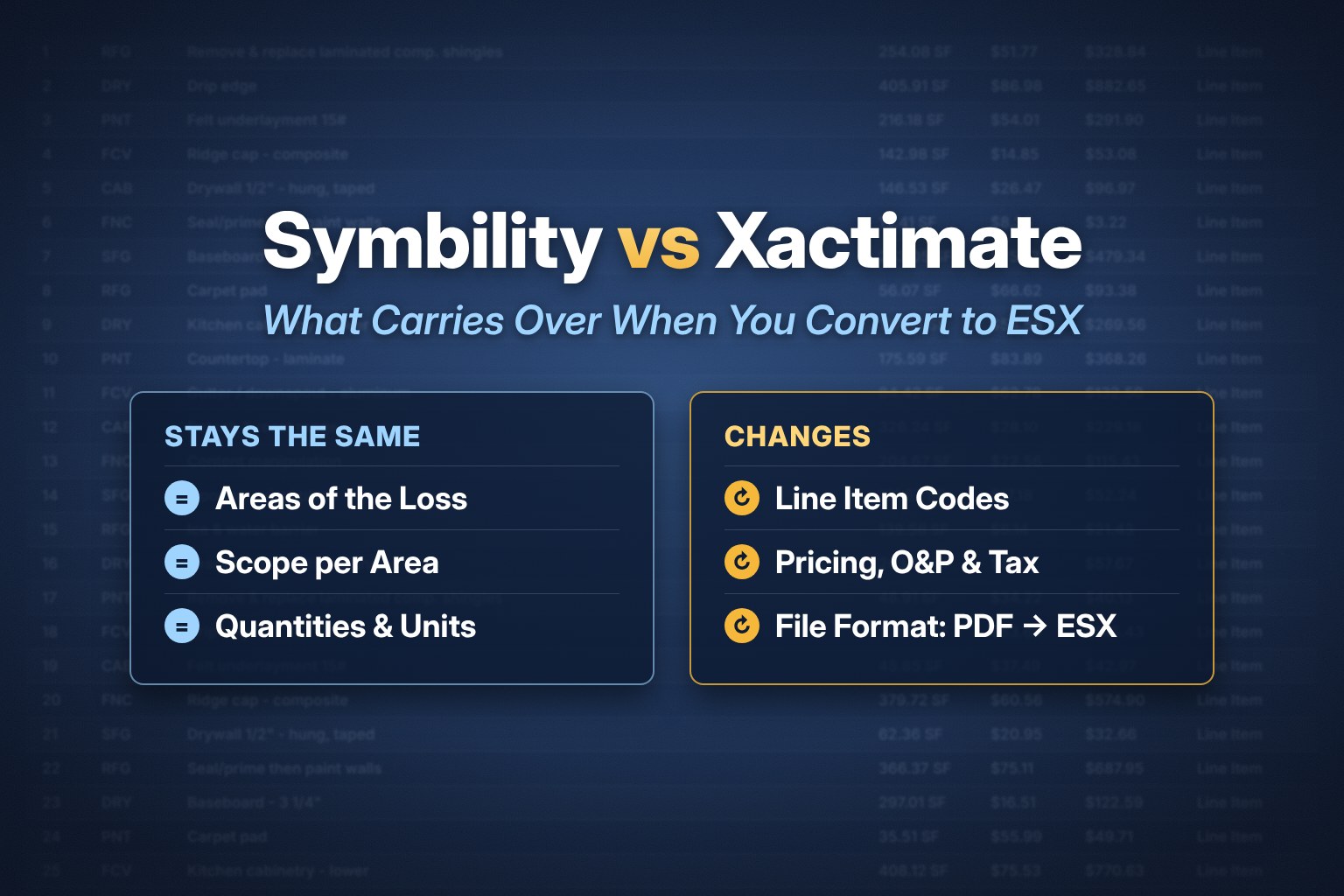
Symbility is now Cotality, and its estimates are structured differently from Xactimate estimates. The line items use their own descriptions and pricing, not Xactimate line item codes. A converter can read the PDF, but if it cannot map each line to a Xactimate code, it typically falls back to placeholder lines. Mapping every line is the hard part, and it is the part many converters skip.
How EstimateHub is different
EstimateHub converts most Cotality/Symbility line items into real Xactimate line items, so only very few lines in your file are TMP MISC. Those lines are there for one of two reasons, and we flag them in green so you can find them quickly. See the Cotality/Symbility to Xactimate ESX converter.
Examples of TMP MISC lines in an EstimateHub file
No reliable match: Either Cotality's price is more than 10% above Xactimate's, or there's no direct equivalent. We keep these lines with their original Cotality description and amount, so your file keeps its full value.
Similar item, different unit: Xactimate has a close match but measures it in a different unit (SF vs LF). We keep the line and add guidance on how to enter it. For example: "Replace - Corrugated Roofing, Steel, Galvanized, 29 Gauge (Use RFG ALUM variation and set SF)"
Either way, you can see exactly which few lines need your attention, instead of a file full of placeholders.
What we saw when we tested
On October 18, 2026 we ran one 63-line Cotality/Symbility test estimate (bedroom, kitchen, exterior and roof damage) through EstimateHub and other PDF to ESX tools, then opened each ESX in Xactimate.
- EstimateHub: 63 of 63 lines translated to Xactimate line item codes, with no TMP MISC lines.
- ProjectEstimatePro: lines imported as generic GEN BIDITEM placeholders.
- CapOut: lines imported as custom items that do not match Xactimate price list codes.
- ClaimsFlow, Antero Trail and ESXpress: did not return an ESX file.
This was one file on one day. Results can change as tools update, so verify before you buy. The full side-by-side is on the PDF to ESX converter comparison.
How to check whether your ESX has real line items
Step 1. Import the ESX into Xactimate. See how to import an ESX file into Xactimate.
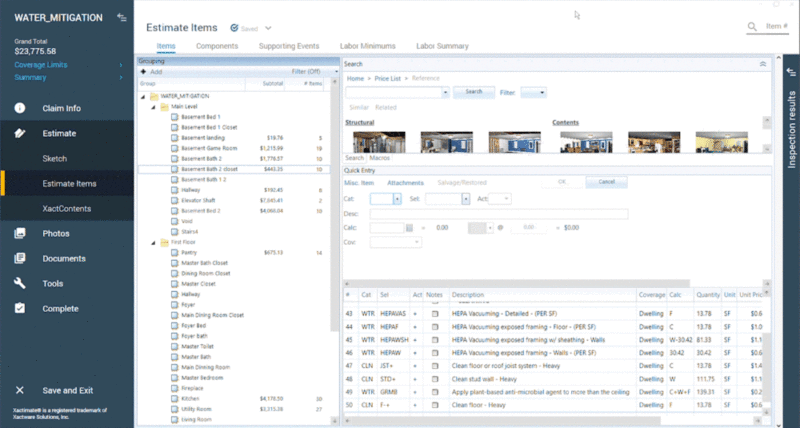
Step 2. Open Estimate Items and look at the Cat and Sel columns.
Step 3. If most lines show TMP MISC or GEN BIDITEM and no category and selector code, they are placeholders. Real line items show a Xactimate category and code, and a drywall or roofing line has its proper unit.
Placeholder lines also tend to appear in green, because they do not match the price list.
Why placeholder lines cost you time
- You cannot reprice from your price list, because the lines are not real Xactimate items.
- You or your estimator must rebuild each line by hand.
- On a large loss that can be hundreds of lines, which cancels the time a converter is supposed to save.
- Supplements built on placeholder lines are harder to defend.
How to convert Cotality/Symbility to Xactimate with real line items
Step 1. Go to the Cotality/Symbility to Xactimate ESX converter.
Step 2. Upload your Cotality/Symbility estimate PDF.
Step 3. Download the ESX file.
Step 4. Import it into Xactimate and review the lines.
Your first conversion is free. For the full walkthrough, see Symbility to Xactimate: how to convert a Symbility (Cotality) estimate to ESX.
Frequently asked questions
What is TMP MISC in Xactimate?
A placeholder line item. It appears when an importer cannot match a source line to a Xactimate line item.
Why did my converter return TMP MISC for a Symbility estimate?
The converter could read the PDF but did not map each line to a Xactimate code, so it created generic items.
Does EstimateHub return TMP MISC?
Very few lines. EstimateHub converts most Cotality/Symbility lines into real Xactimate line items. The exceptions are lines with no reliable match, or lines where Xactimate uses a different unit. We flag them in green and keep the original Cotality description and amount.
Can Xactimate import a PDF directly?
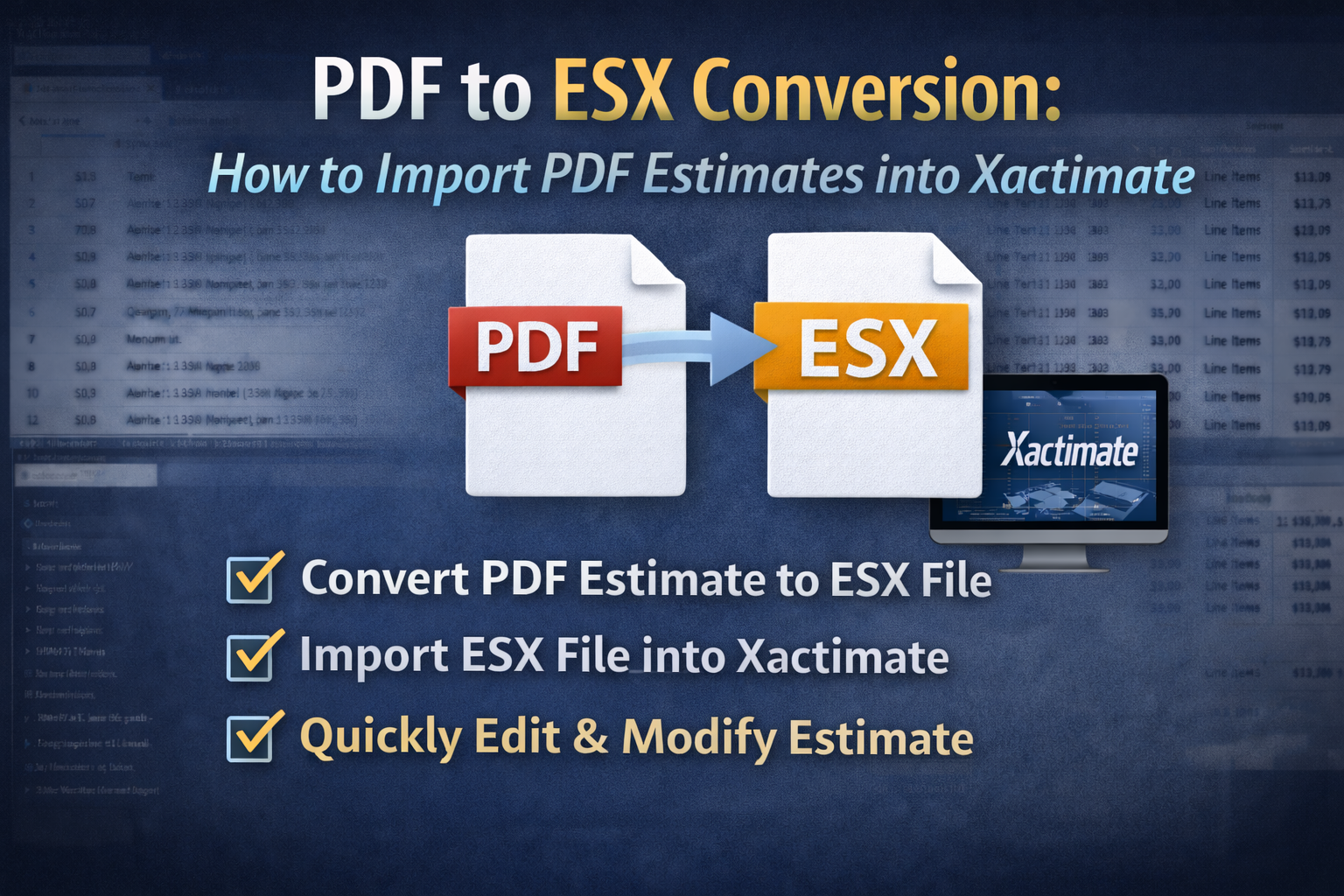
No. Xactimate imports ESX files, not PDFs. See how to import an ESX file into Xactimate.
Is Symbility the same as Cotality?
Symbility was renamed Cotality, so searches for Symbility to ESX and Cotality to ESX describe the same conversion.
Do I need to review pricing after import?
Yes. Prices follow your Xactimate price list after import, so review pricing, O&P and tax.
I have a Xactimate PDF instead. What do I use?
Use the Xactimate PDF to ESX converter.
Related reading: Symbility vs Xactimate: what changes when you move an estimate and EstimateHub.