Xactimate Estimate Example: Line Items and Layout



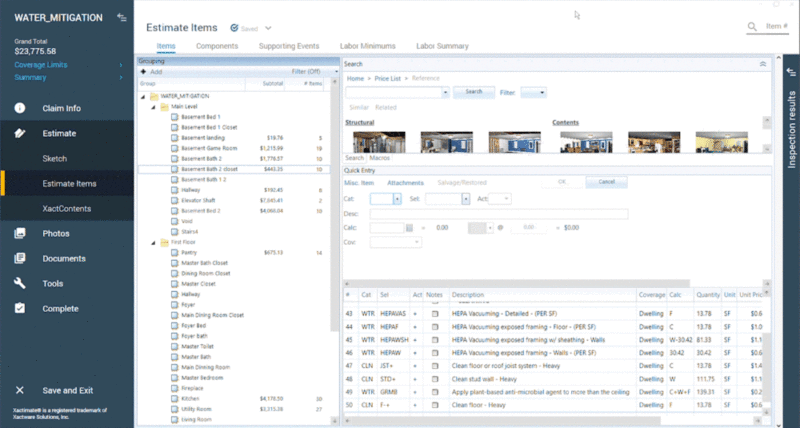
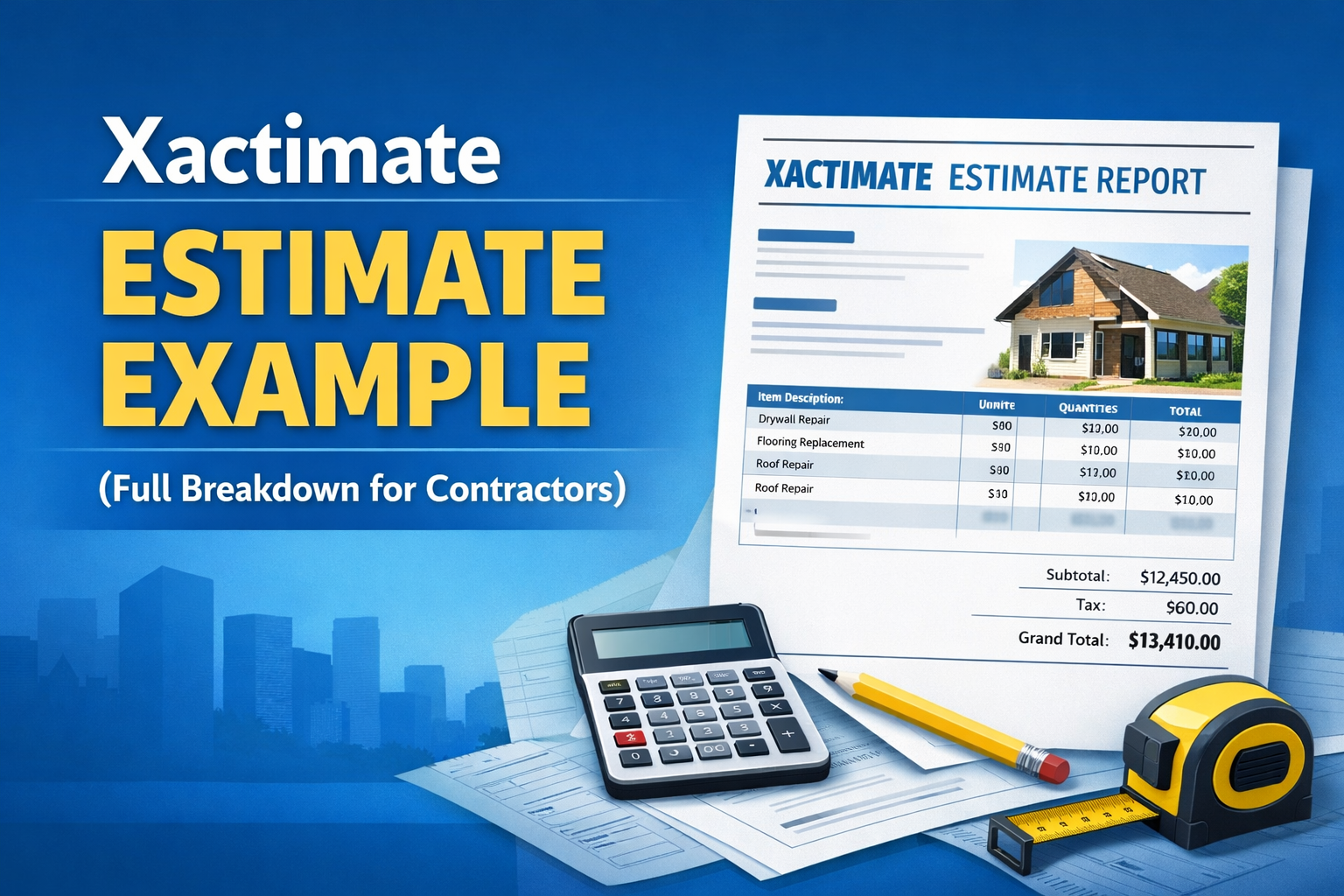
A Xactimate estimate is a room-by-room list of repair line items. Each line has a category and selector code, a description, a quantity, a unit and a price from the price list, and the lines add up to the total repair cost for the claim. Below is a sample layout, followed by how each part works and how contractors review one.
What Is a Xactimate Estimate?
A Xactimate estimate is a structured report listing repair costs for property damage.
Typical claims include:
- water damage
- fire damage
- storm damage
- roof damage
The estimate is built using Xactimate’s pricing database. Xactimate is the most widely used estimating software in the insurance restoration industry. Contractors, insurance adjusters, and public adjusters use Xactimate estimates to document repair costs for property damage claims.
Anatomy of a Xactimate Estimate
A standard estimate includes:
Claim Information
- insured name
- claim number
- property address
Estimate Summary
Total cost of repairs.
Line Items
Example: Remove damaged drywall, Install new drywall, Paint walls, Replace flooring.
Each line item includes:
- quantity
- unit price
- labor
- materials
Folder Structure
Estimates are organized into folders such as: Living Room, Kitchen, Bedroom, Roof, Exterior
This keeps the estimate organized and easy to review.
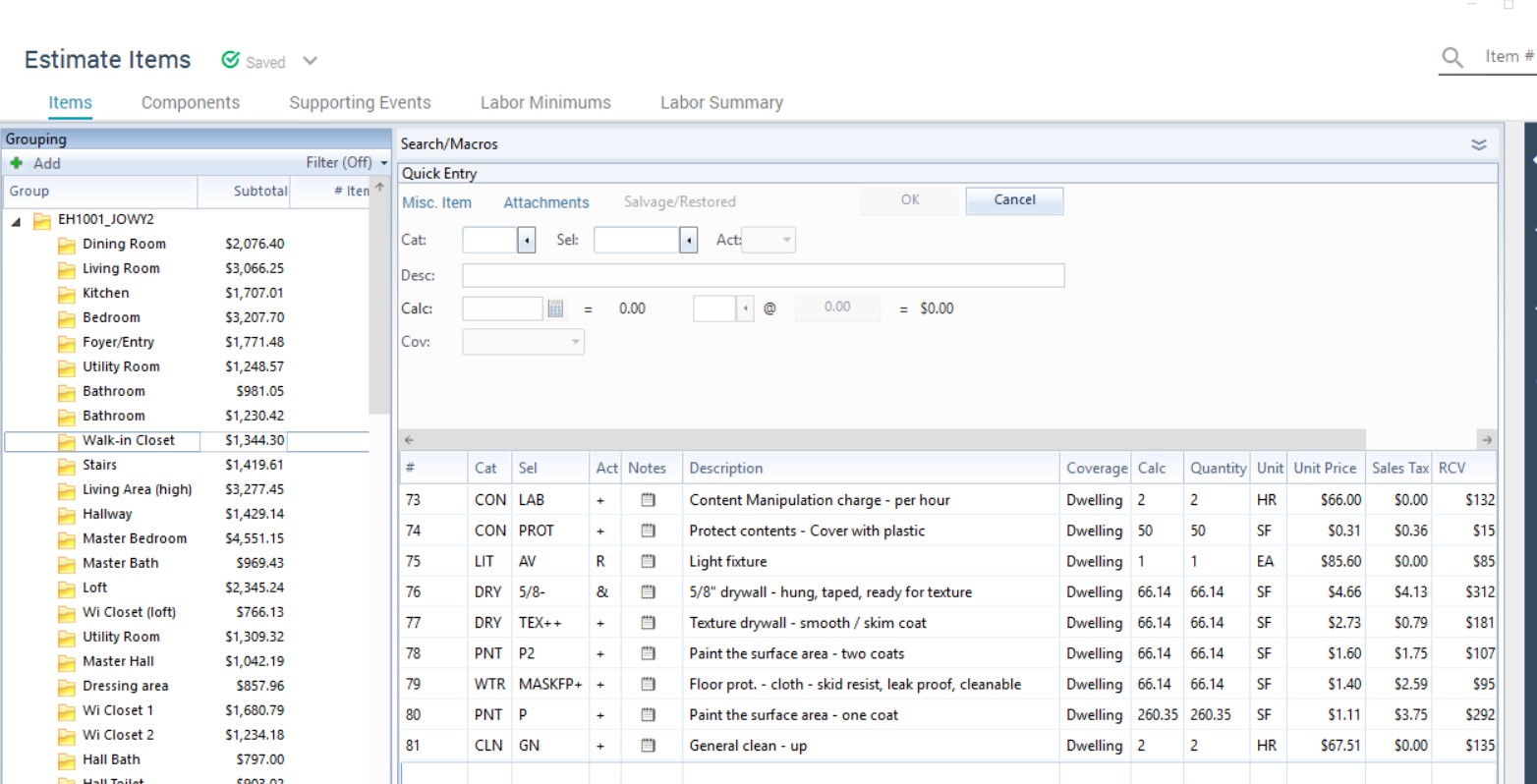
Sample Xactimate Estimate Layout
This simplified example shows how a water damage estimate can be laid out. Quantities are illustrative. Categories, selector codes and prices come from your Xactimate price list.
Folder: Kitchen
- DRY: Remove water-damaged drywall, 96 SF
- DRY: Install and finish drywall, 96 SF
- PNT: Seal and paint walls and ceiling, 420 SF
- FCV: Remove and replace vinyl flooring, 140 SF
- CLN: Clean and sanitize surfaces, 140 SF
Folder: Bedroom 1
- DRY: Remove water-damaged drywall, 64 SF
- DRY: Install and finish drywall, 64 SF
- PNT: Seal and paint walls and ceiling, 380 SF
To read a line, check the Cat (category) and Sel (selector) columns first. Together they identify the Xactimate line item. Then check the description, quantity, unit (such as SF for square feet) and price, which multiply to the line total.
Xactimate Estimate Example Video
How Contractors Review Adjuster Estimates
Contractors often compare their scope of work against the adjuster's estimate.
They look for:
- missing line items
- incorrect quantities
- outdated pricing
This process is called estimate reconciliation.
Why ESX Files Matter
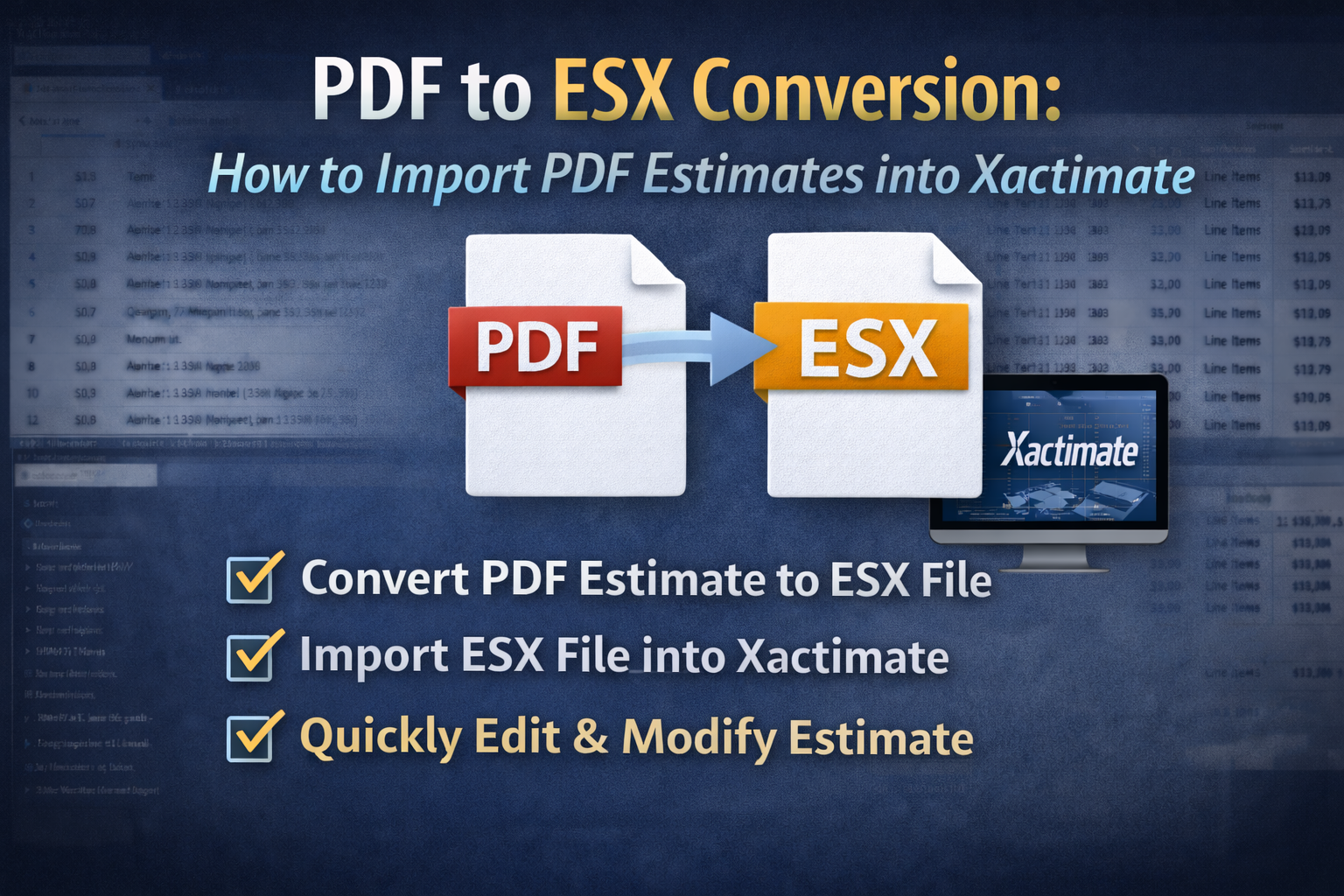
When contractors receive an estimate as a PDF, they cannot edit it. But if the estimate is provided as an ESX file, it can be opened directly in Xactimate.
That allows contractors to:
- modify line items
- update quantities
- add missing work
Converting PDF Estimates into ESX
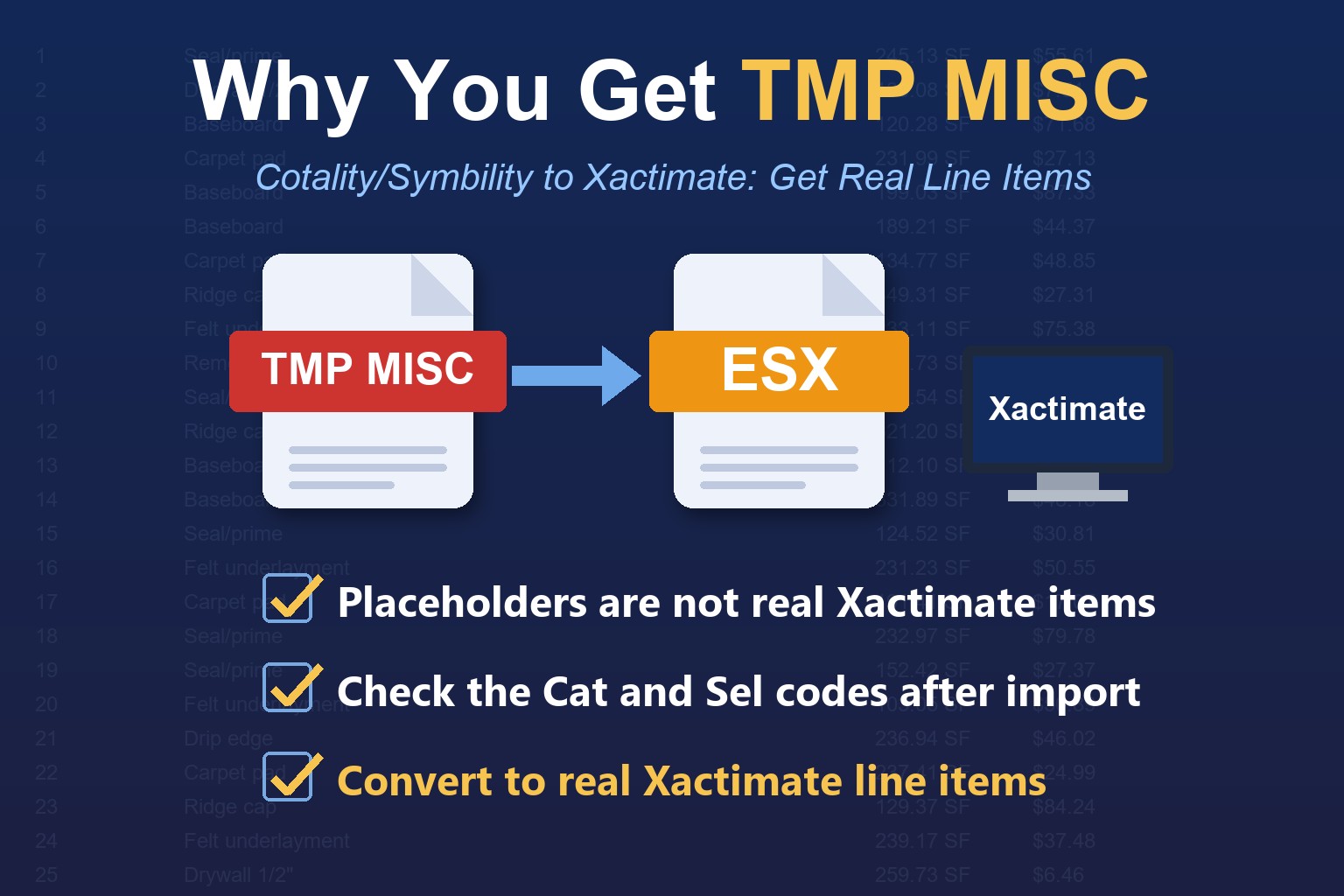
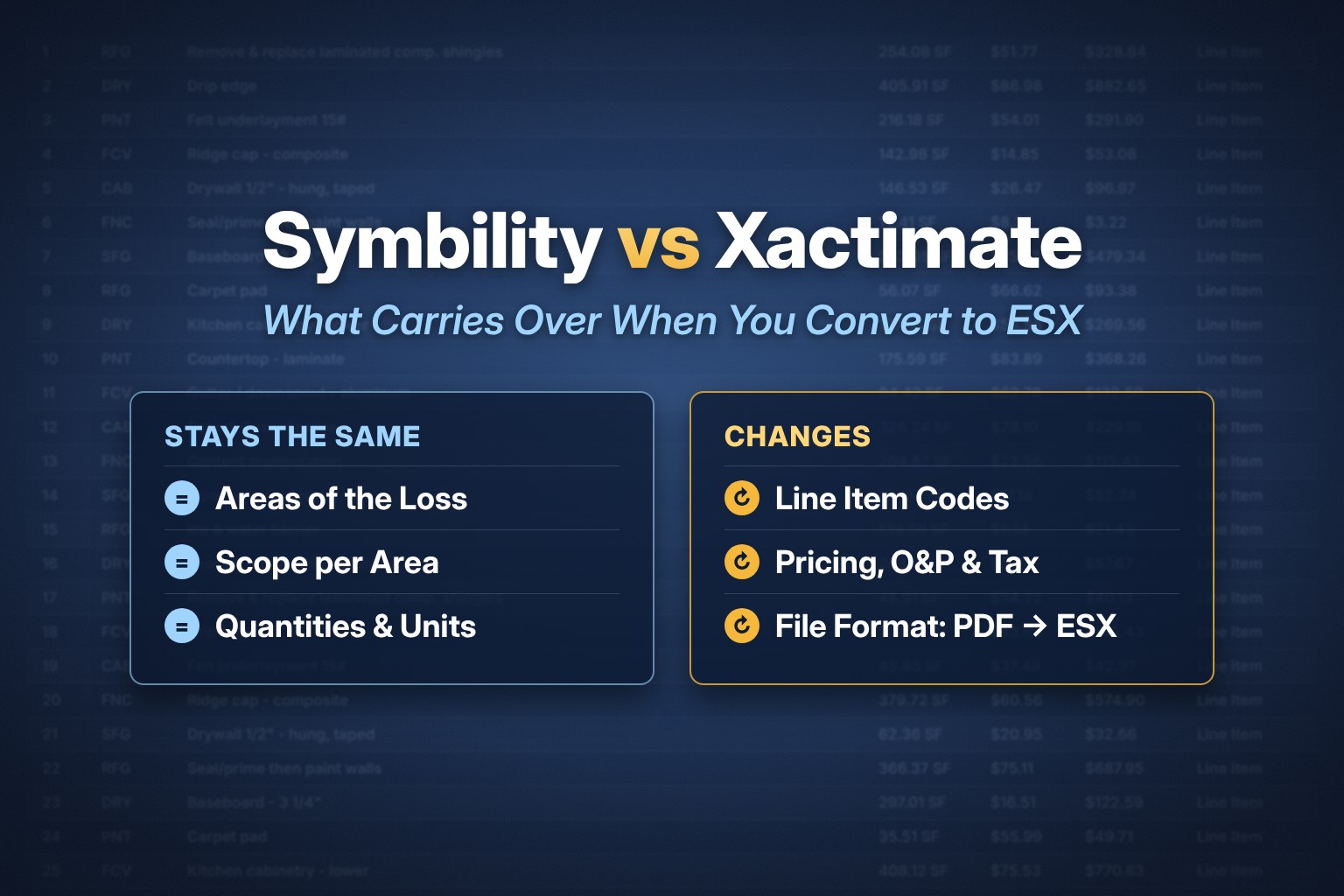
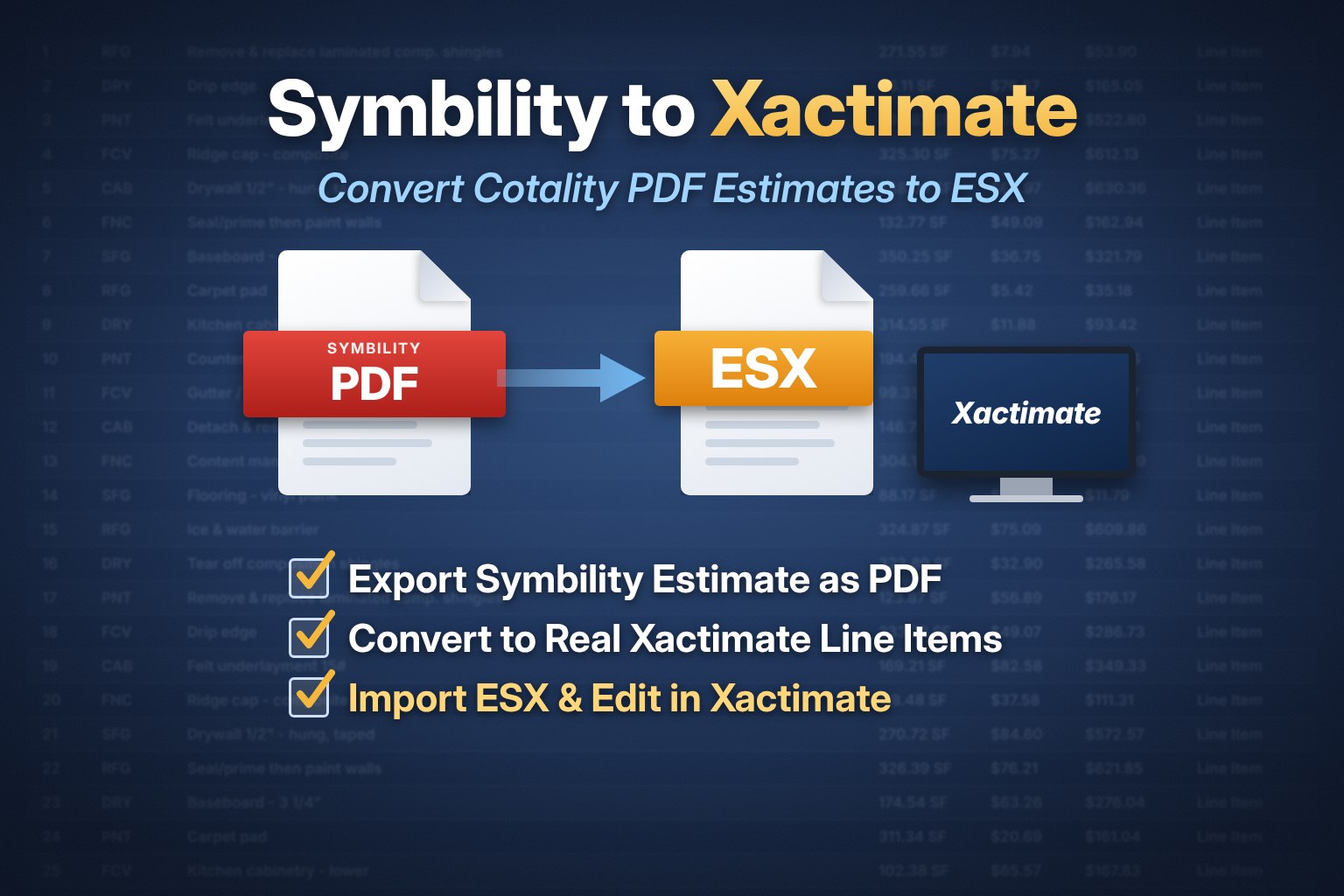
When Contractors receive a homeowners estimate as a PDF, they normally have to rebuild the estimate manually and add missing items, however there is a new tool that can convert the PDF into an ESX file using a PDF to ESX conversion tool.
Want ready-made estimates to start from? Download free ESX templates and Xactimate macros. Have a PDF estimate? Convert it with the PDF to ESX converter, or use the Cotality/Symbility to Xactimate ESX converter for Cotality (Symbility) estimates.
Need an estimate written for you? See our Xactimate estimate writing services, including Xactimate sketch services for roof and floor plan sketches, and Cotality/Symbility estimate writing.
New to Xactimate? Watch the 25-minute beginner video and follow the step-by-step guides in our free Xactimate training.
Xactimate Estimate Example FAQs
What does a Xactimate estimate include?
Claim information, an estimate summary, and line items grouped into room folders. Each line shows a category and selector, a description, a quantity, a unit and a price, and the totals can include overhead and profit and tax.
How do I read a Xactimate estimate?
Start with the folders to see which areas are covered, then read each line: the Cat and Sel columns identify the item, and quantity times unit price gives the line total. Compare the scope against the damage to find missing items.
Can I get a Xactimate estimate example as a file?
Yes. ESX World has free ESX templates you can import into Xactimate and edit.
Can I edit a Xactimate estimate that I only have as a PDF?
Not directly, because Xactimate cannot open a PDF. Convert the PDF to an ESX file with the PDF to ESX converter, then import the ESX into Xactimate.
Conclusion
Understanding how Xactimate estimates are structured helps contractors review and adjust insurance claim estimates more effectively. Working with ESX files instead of PDFs allows for faster editing and more accurate estimate reconciliation.